
Create your account
Moto Garage uses a simple email + password account: no social sign-in, no phone number.
- Go to app.motogarage.io (or open the iOS / Android app).
- Choose Create an account, enter your email and a password, and you're in.
- That's it: your garage starts empty, ready for a bike.
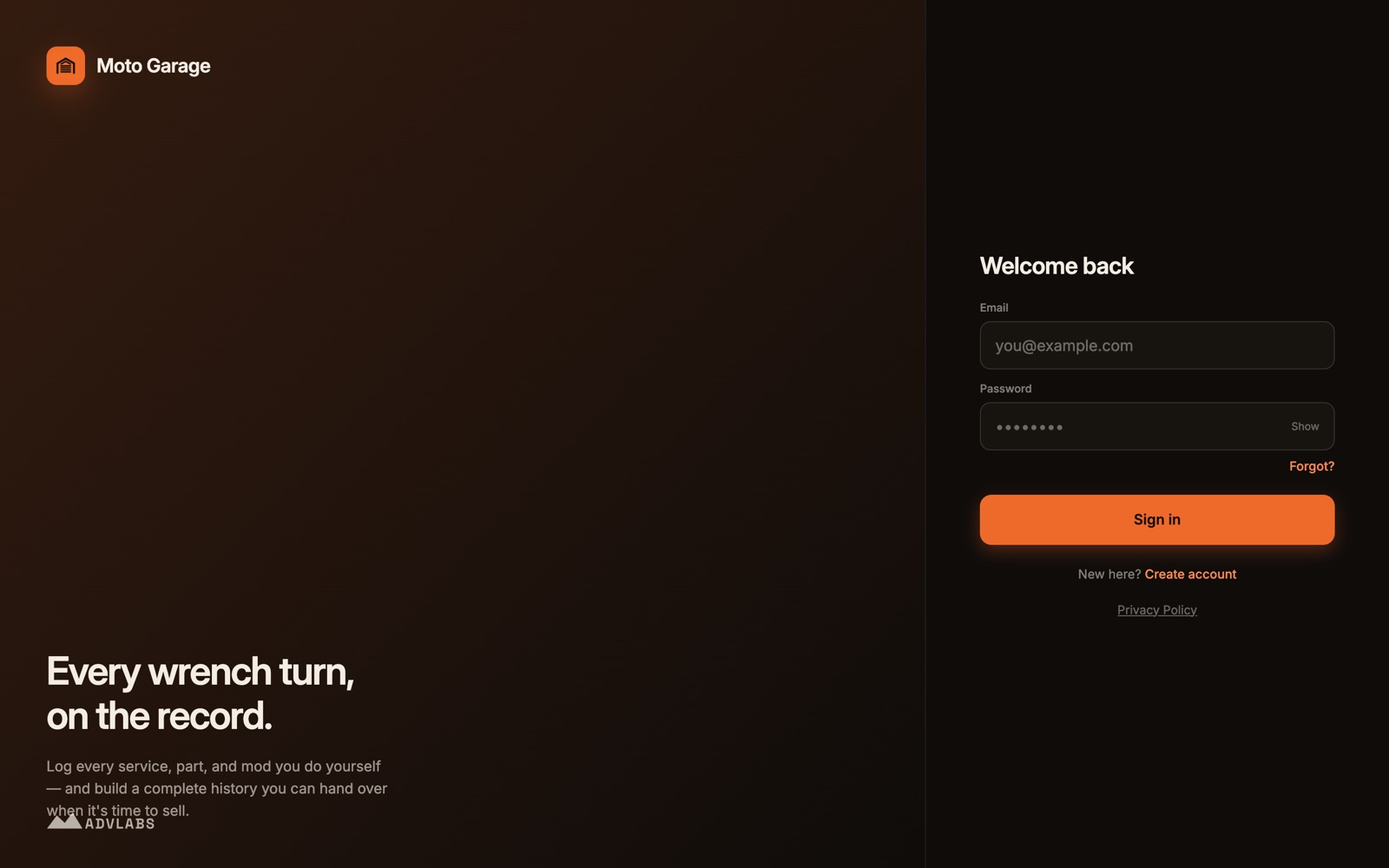
Forgot your password? Use the reset link on the sign-in screen and we'll email you a real reset link.
Add your first bike
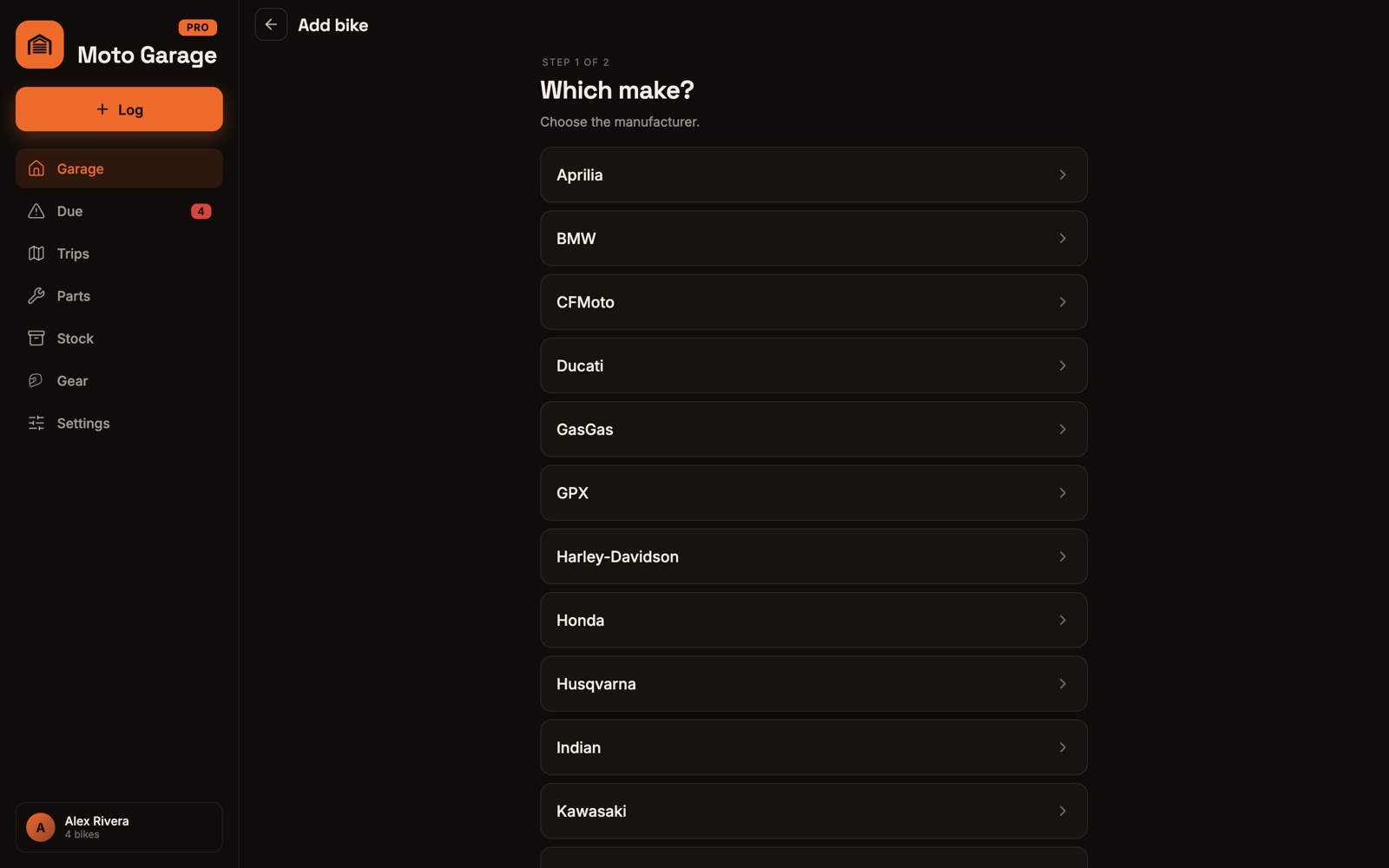
- From the Garage tab, choose Add bike.
- Pick your make and model from the catalog: 500+ bikes across 18 brands.
- Review the factory maintenance schedule that comes with it: oil, valves, chain, brake fluid, tires, the whole list. You can rename, re-time, or drop any interval right here before the bike is created.
- Set the current odometer reading so the countdowns start from where your bike actually is.
Brand-new bike? Mark it as new when you add it and it starts on the factory break-in service; logging that first service rolls it into the regular schedule. Something rare or heavily modded? Add it by hand and you get the same tracking with your own intervals.
Log service & mileage
The center Log button is the everyday workhorse: it opens a chooser for the two things you'll do most.
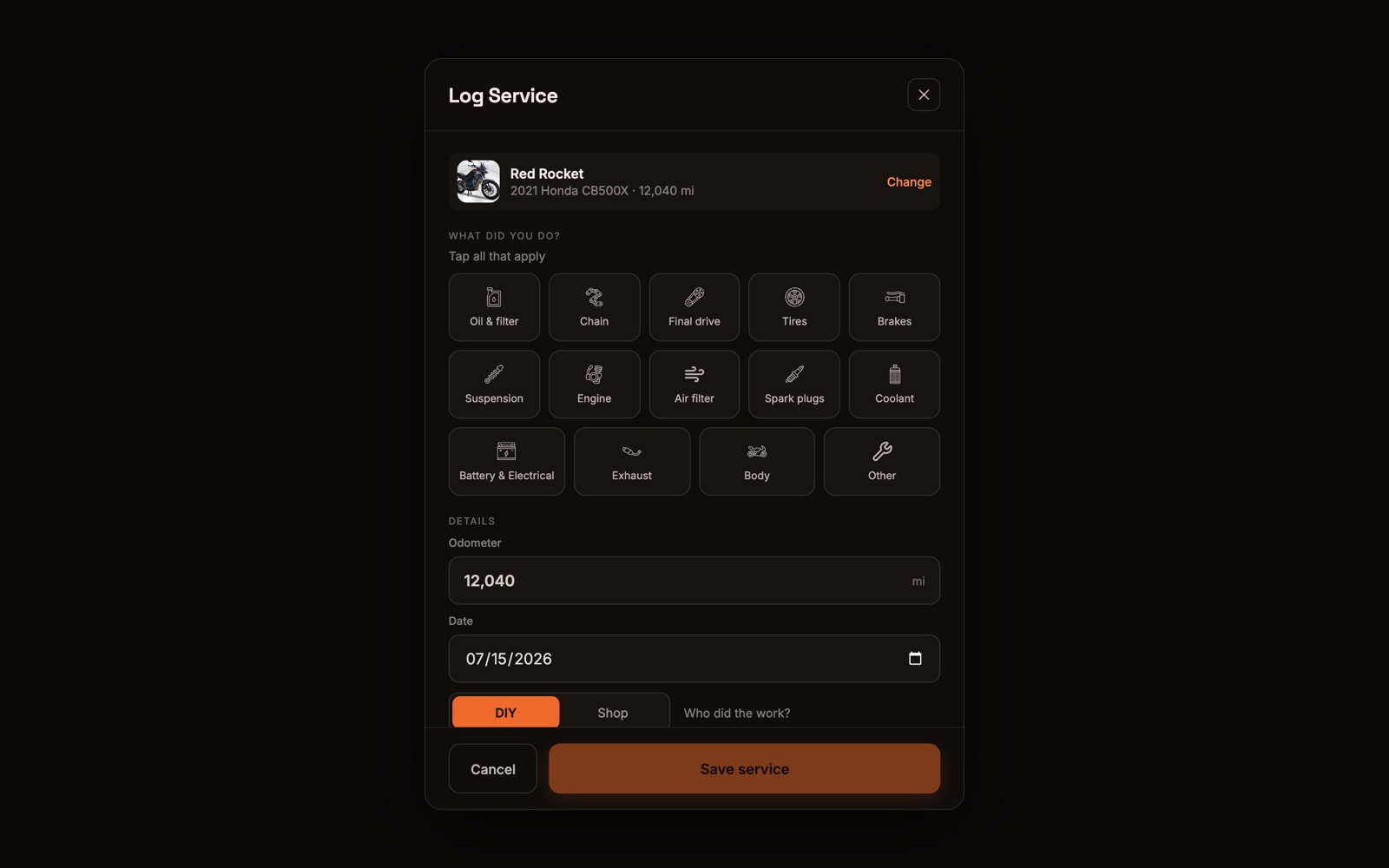
- Log service: pick the category (oil, chain, tires, brakes…), the odometer and date, what it cost, and whether it was DIY or a shop job. Snap the receipt (photos or PDFs) if you want it on file.
- The intervals that service satisfies come pre-checked: logging an oil change resets the oil countdown on its own. Un-check anything that shouldn't reset.
- Log mileage: just the odometer and an optional note. Regular readings teach the app your pace, which powers the "due in about two weeks" estimates.
Edit anything later
Nothing in Moto Garage is set in stone: most things open a detail view with an edit action.
- A bike: open it and choose Edit bike: name, photo, purchase details, renewal dates, even switching between tracking miles and engine hours.
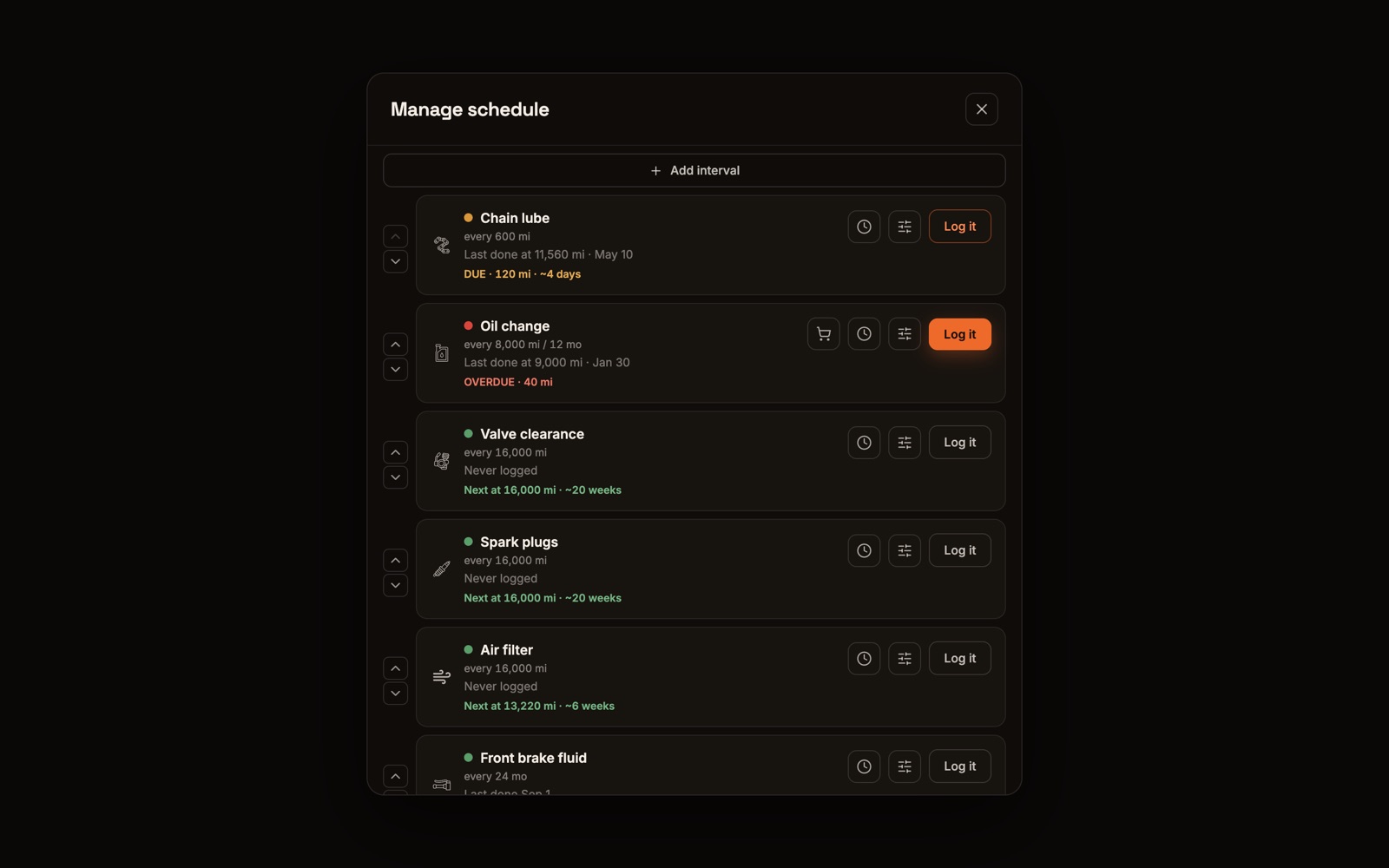
- The schedule: Manage schedule lets you rename an interval, change how often it recurs, pick its icon, set its own alert window, reorder the grid, hide factory items you don't want, or add fully custom ones.
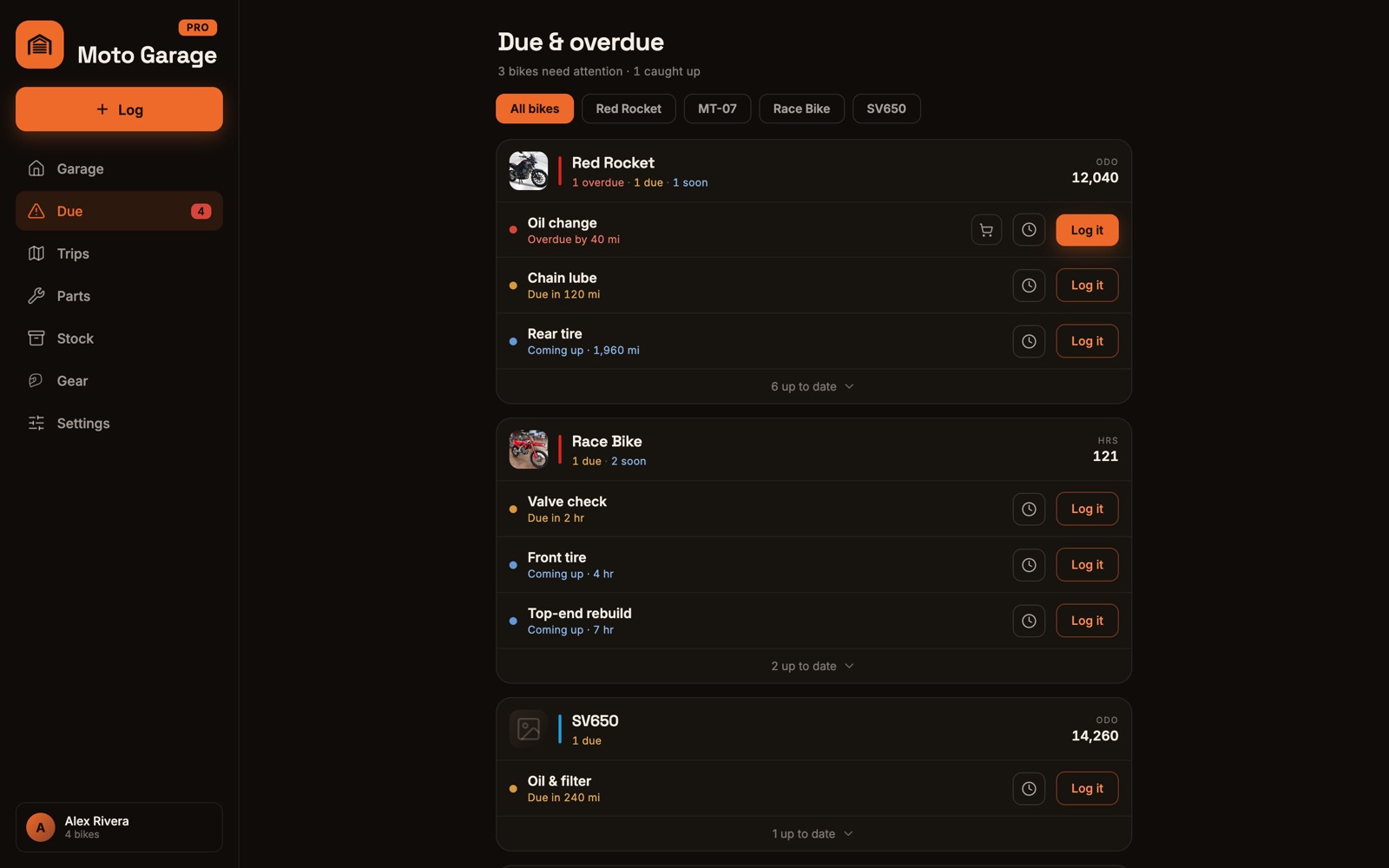
- An interval that can wait: snooze it from the Due page or by tapping its tile on the bike page. Push it out a few hundred miles or a few weeks without faking a log; it clears itself when you log the real service.
- A service record: open it from the history to fix the cost, date, receipts, or which intervals it satisfied, or delete it entirely.
- A mileage reading: tap the mileage card to see every reading; logged ones can be edited or deleted (readings captured by a service stay read-only).
- A part: open it to move it through its lifecycle (idea → planned → purchased → installed) or edit the cost, vendor, and notes.
Stay ahead of what's due
- The Due tab is the whole garage on one page: each bike is a card with its services sorted by urgency, color-coded from overdue red to all-caught-up.
- Want an earlier heads-up? Turn on "coming up soon" in Settings → Due page and pick how far ahead it looks.
- The bell in the Garage header collects every alert in one inbox; notification categories and channels are in Settings → Notifications, with one master switch over all of it.
Bring your history along
- Import years of records from a spreadsheet (.csv or .xlsx) with a column mapper and a preview, including a previous owner's history, kept separate from your own totals.
- Export any bike's service history as a spreadsheet, or generate a printable PDF report, handy for a shop drop-off or a buyer.
Get the apps
The full web app is live today, and the iOS and Android apps are on the App Store and Google Play. All of them share the same garage in real time.
Stuck on something this page doesn't cover? Say hi on Instagram or Facebook. Feedback shapes what gets built next.